 Administration Manager.
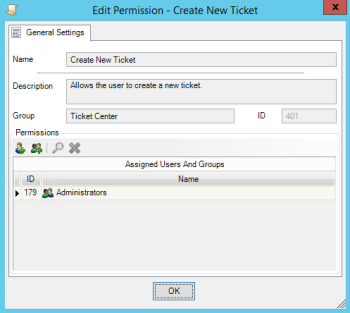
 Event Ticket Permissions control user access to the Event Tickets in your TLC environment (see What is the Ticket Center?). You can configure the Event Ticket Permissions for all User Accounts and Groups in the Event Ticket Permissions dialog in the Administration Manager (see Figure 50).
To configure the user permissions for Event Tickets:
| 1. | In the side bar, select Resources >Administration Manager. |
| 2. | In the side bar of the Administration Manager, expand the  Permissions. Permissions. |
| 3. | Under Permissions, expand the Ticket Center group. |
| 4. | In the workspace, TLC presents a list of permissions for Event Tickets. Table 66 defines each Event Ticket Permission. |
|
Permission |
Grants users the ability to ... |
|---|---|
|
View Ticket Center |
... open the Ticket Center (see Working with Event Tickets). |
|
Create New Ticket |
... create new Event Tickets. |
|
View Group Tickets |
... view Event Tickets assigned to User Groups to which the user belongs. |
|
Modify Group Tickets |
... change Event Tickets assigned to User Groups to which the user belongs. |
|
Delete Tickets |
... delete Event Tickets assigned to the user. |
|
Delete Group Tickets |
... delete Event Tickets assigned to User Groups to which the user belongs. |
|
Delete Other Users' Notes |
... delete Notes created by other users in an Event Ticket (see Working with Notes, IP Tags, and other Properties in an Event Ticket). |
|
Set Ticket Publicly Visible |
... enable or disable the Publicly Visible setting in the Event Ticket properties dialog (see Working with Event Tickets). |
|
View Other Tickets |
... view all Event Tickets. |
|
Modify Other Tickets |
... change any Event Ticket. |
|
Delete Other Tickets |
... delete any Event Ticket. |
|
Modify Ticket Variable |
... modify variables used in Event Tickets. |
To change the list of accounts and groups that have the permission, double-click permission in the workspace. The Event Ticket Permissions dialog opens (see Figure 50).
Figure 50. Event Ticket Permissions dialog
| 5. | As needed, modify the list of user accounts and groups with the permission and click OK. |
To add a User Account, click Add User.
To add a User Group, click Add Group.
To remove an account or group, select the item and click Remove.